



Alarm Engine Knowledge Center
Access Control Overview
E27 Firmware update 0.5.62 introduces basic door access control functionality within the E27 system. While this is not yet a full-fledged access control system, we are working on future enhancements. For now, this update allows the E27 to activate access-controlled door locks based on User Groups.
User Groups & Access Control
The E27 supports up to 10 user groups.
- Two default groups: Installer and Master User.
- Eight additional groups can be created (e.g., "Employees," "Management").
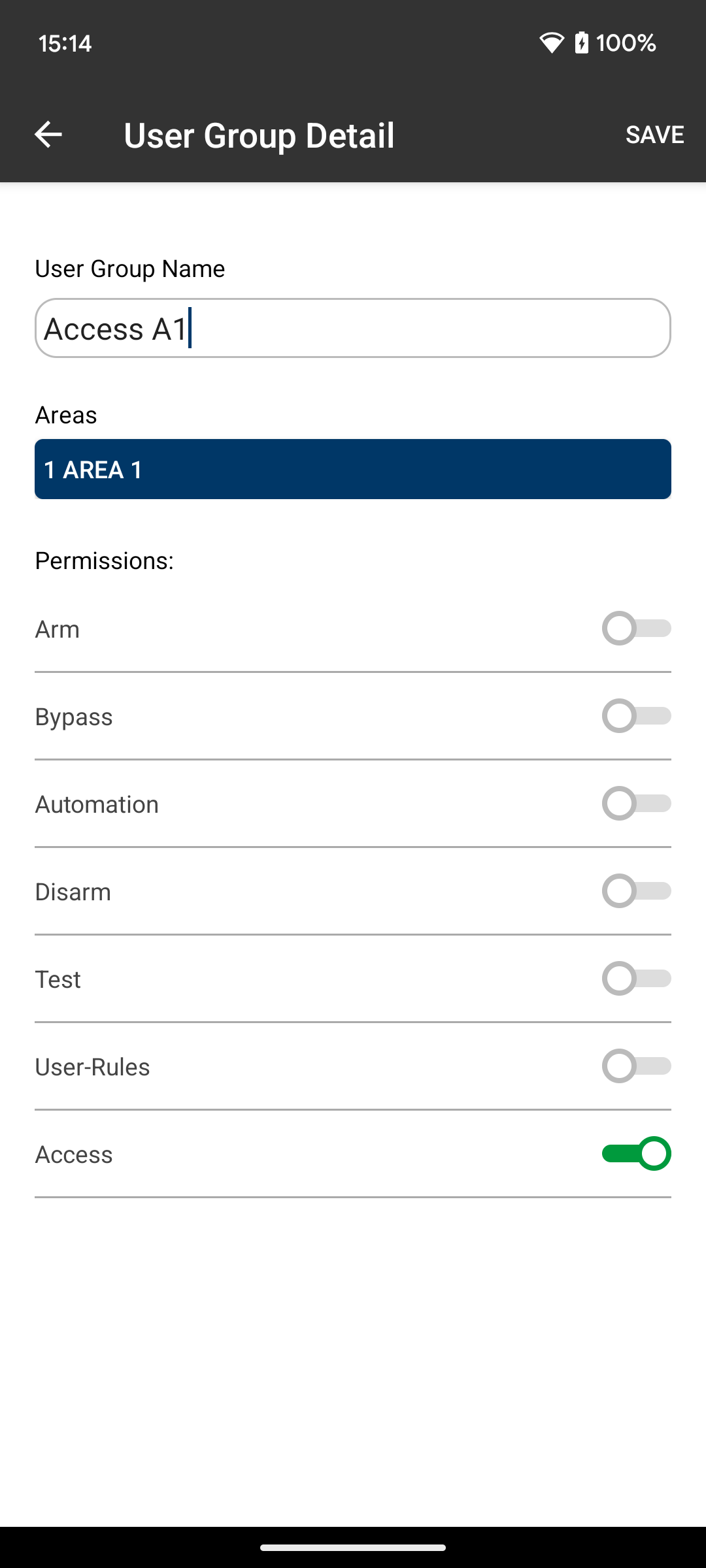
In User Group Settings, a new "Access" toggle is available:
- When enabled, users codes and Weigand credentials assigned to this group will activate Access rules, facilitating the control of door/gate locks as specified in the rule
- A user group can have Access enabled, in addition to other permissions, such as Arm and Disarm.
- When both Disarm and Access permissions are enabled, if the area is armed, it will disarm and access rules will be activated when a user code is entered at the keypad or a Wiegand credential is presented.
- Arming is suppressed for Wiegand credentials when both Access and Arm permissions are enabled.
- Arming is allowed for keypad entry of user codes assigned to a user group with both Access and Arm permissions.
Using Weigand Readers
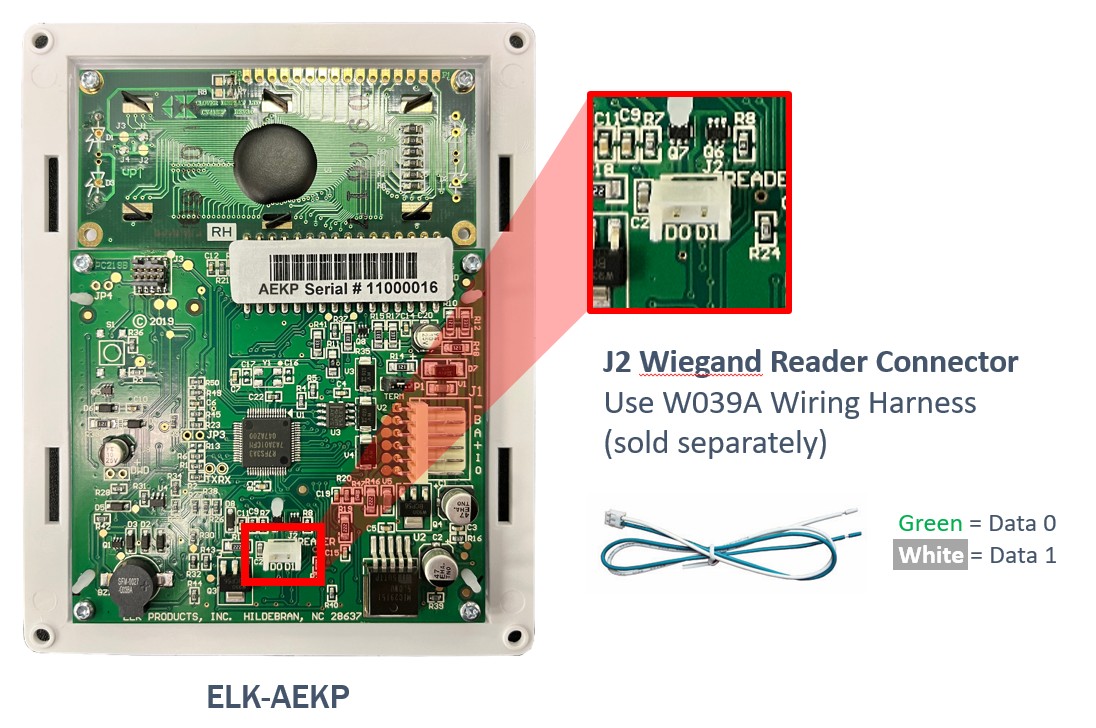
- Currently, Weigand Readers are supported only via the AEKP Keypad connection.
- A W039A wiring harness is required to connect the Weigand reader to the AEKP Keypad
- The Weigand reader must provide a 26-bit Weigand output
- The keypad name will serve as your access door name (e.g., “Office Door” or “Front Door”).
- In the future, a dedicated door access module will be available.
Setting Up Weigand Credentials
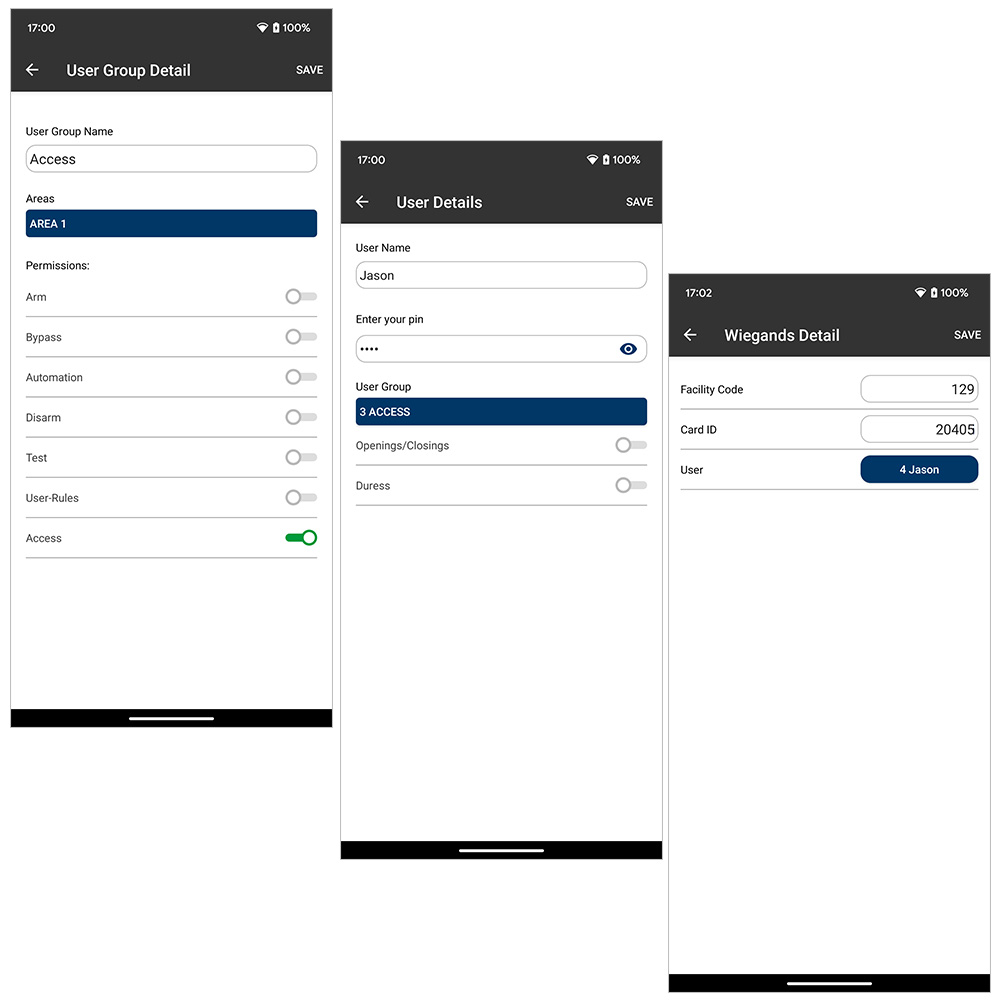
Define User Groups
- On the User Groups page, tap an existing user group to edit or tap the + icon to add a new user group
- Enter a name for the user group
- Select the area(s) the user group is assigned to
- Select the desired permissions for the user group.
- Tap SAVE to save the user group
Assign Users to User Groups
- On the Users page, tap an existing user to edit or tap the + icon to add a new user
- Enter a name for the user
- Enter a 4 digit PIN for the user
- Select the desired user group for the user.
- If desired, enable openings/closings and/or duress for the user (see E27 Programming Manual for details)
- Tap SAVE to save the user
Add Wiegand Credentials and Associate with User
- Go to the Prox Cards/Fobs page and tap an existing card/fob to edit or tap the + icon to add a Wiegand credential.
- Enter a the facility code found on the card/fob (or as designated by the Wiegand reader device)
- Enter the card ID number found on the card/fob (or Wiegand access PIN code for Wiegand keypads)
- Select the desired user to associate with the Weigand credential (this will be used for logging purposes) .
- Tap SAVE to save the Wiegand credential
Access Control Rules
Creating Access Control Rules
Rules are required for each access door/gate to define how the system responds to access events from access enabled users. These rules can be simple or can contain conditional statements to define different responses for different user groups. To create rules:
- Log in to ElkConnect.com Dealer Portal.
- Select the desired system to configure.
- Navigate to Advanced Rules Editor. This button is found at the bottom of the System/Panel page.
Basic Access Rule Structure
An access control rule must define the following:
- Keypad location where the credential was presented & the User Group that particular rule applies to
- The Action that should occur. This is typically controlling an output on the E27 system that a operates the locking mechanism.
In this example, the Front Entry output will be turned on for 5 seconds each time a valid user credential assigned to user group "Access" is presented at the Front Entry keypad/reader.

Defining Schedules in Access Rules
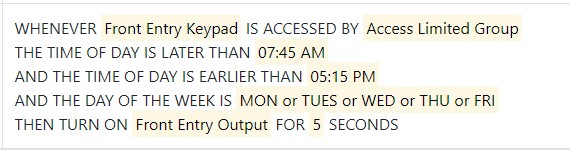
Conditional statements can be added to access rules to further define when the access rule should be executed. This allows for day and time based restrictions to be built into the rule.
In this example, the Front Entry output will be turned on for 5 seconds each time a valid user credential assigned to user group "Access Limited" is presented at the Front Entry keypad/reader, between the hours of 7:45 AM and 5:15 PM on Monday through Friday.
Access Logs & Event History
- Every access attempt is logged in both the cloud and the control panel.
- Log data includes date/time, entry point, and user name
- Logs indicate if access was granted or denied.
- A denial is logged whenever a recognized user with valid access permissions is denied entry due to unmet rule conditions or because the system is armed.
- If a credential is not recognized or a rule is missing, no log entry will be created.