


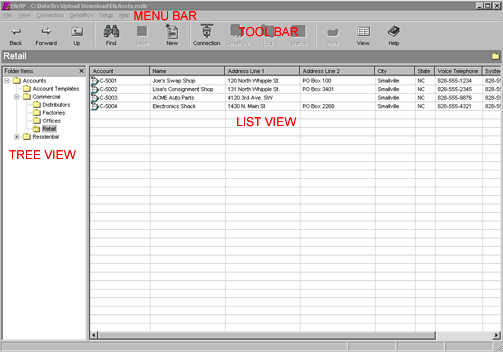
Menu bar
Click the left mouse button over any menu item to display a list of choices for that item. Move the mouse over one of the choices and click the left button again to select the choice. Choices followed by periods open a window for you to enter additional information. Choices followed by an arrow open a sub-menu.
Tool bar
Click the left mouse button over any tool bar icon to display a list of choices for that icon. Move the mouse over one of the choices and click the left button again to select the choice. Choices followed by periods open a window for you to enter additional information. Choices followed by an arrow open a sub-menu.
Tree view
The left pane of the display shows accounts and programmable items in a tree. Double-click the left mouse button on any branch or click once on the plus sign in front of the branch to open and close that branch. Double click on any leaf to open that item in the right pane.
List view
If the selected item in the left pane is a branch, the right pane displays a list of details about the leaves beneath it.
Item view
If the selected item in the left pane is a leaf, the right pane displays all the details for the selected item.
Right clicking
Clicking the right mouse button on items in the Tree view and List view will pop up a context menu. Explore the display. Right-click on various items to see what is available. Some items in the Item view have a right-click menu.