


Conflicts are the differences detected between what is programmed in the system and what is stored in the database for an account. Conflicts can arise from the customer changing the system programming themselves (changing user codes, etc.), or from an installer on a service call modifying the programming through local (keypad) programming. Conflicts can also arise when an operator makes a change in ElkRP without being connected to the system.
If any of these cases occur, the next time ElkRP connects to the account, it will automatically detect the differences and list them in the Conflicts Window, provided the system administrator has not disabled this feature. The operator has several options for resolving the differences. After all conflicts have been resolved, the Conflicts Window will disappear.
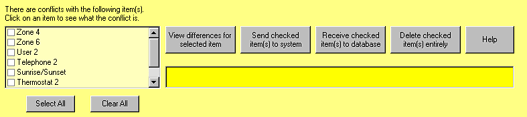
If the list of conflicts is very large, you may scroll through it by clicking the scroll bar. To see what the specific problem is with an item, select it by clicking on it. A description of the problem appears in the lower text box.
To see what changed in the item, select the item, then click the View differences button. A window will pop up showing the system’s and ElkRP’s copies of that item side by side.
If the item was changed in the system, and you know the change should be accepted, click on the item’s check box to select it, then click the Receive button. ElkRP will receive the system’s copy of the item to be saved in the database. This solution should be used whenever the customer or an installer makes a change through local programming and you want to update the database to be current.
If the item was changed in the database, and you know it is correct, check the item’s check box and click the Send button. ElkRP will send its copy of the item to the system to be programmed. Whatever was already in the system will be replaced. This solution should be used if an operator changes something off-line, then later connects to the system.
If the item simply shouldn’t exist at all, check its checkbox and click the Delete button.
If an item in the conflicts list is sent or received without using the buttons in the Conflicts Window, the list will still be automatically updated.
If a new account is created from an account template, then modified off-line, when ElkRP connects to the newly installed system there will be several items in the conflicts list. There is really no need to use the buttons in the Conflicts Window to resolve the differences in this case. Since the account was already programmed off-line, and because there are no changes made in the system that need to be kept, simply send all the programming to the system using the Send All command in the Send/Rcv menu.