Serial to Ethernet Converter
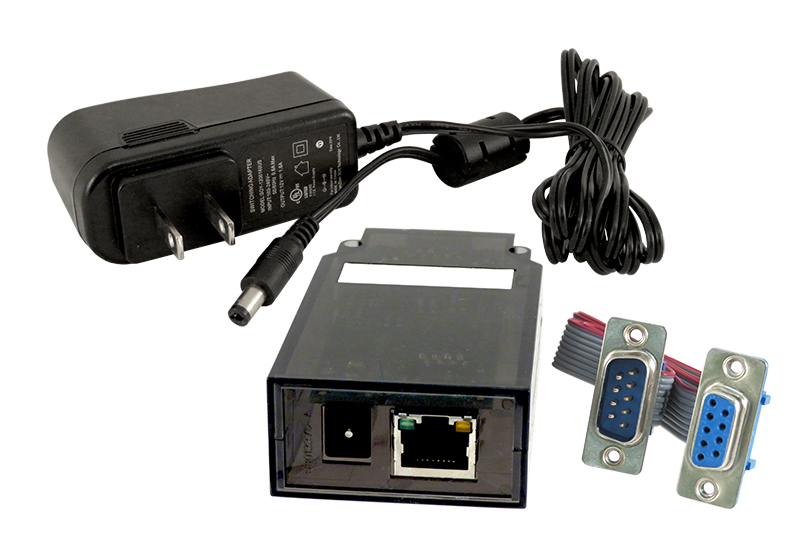
ELK-IP232
Information:
Features:
• Allows up to twelve (12) simultaneous TCP-IP network connections
• Up to twelve (12) "Rules" may be programmed to make outgoing connections.
• Outgoing connections may be initiated upon power up or when serial activity is detected. They may remain connected indefinitely or for a set time period.
• Selectable baud rate from 300 to 115200 baud
• Supports software handshaking (XON/XOFF) and hardware handshaking (RTS/CTS)
• Multiple Bridges can be used on the same network
• Can be updated in the field with new firmware using the Configuration Utility
• Integrated 802.3 compliant 10/100 Mbit network interface
• RS232, DB9M 9-pin serial port connection
• Connects to the M1 RS-232 Serial port (Port 0).
• RJ45 8-pin Network Jack
• 2.1mm barrel type power connector (center positive)
• LED Indicators for Power, Link, and Data
Specifications:
• Current Draw: approx. 135 mA
• Dimensions: 3.85. L x 1.7. W x 0.93. D
Special Information:
This utility is required to configure the network settings, serial port baud rate, and handshaking settings of ELK-IP232, as well as to update the bootware and firmware. Download and save the file above, then run it to install the utility on a new PC or to update an existing installation of the utility.
| Updates |
|
Bootware (Version 1.0.6 released 02/13/2008)
Firmware (Version 1.0.16 released 01/18/2010)
These updates represent the latest releases of the IP232’s BOOTWARE and FIRMWARE. Both files should be updated as a pair, however the Bootware MUST be updated first. To review the list of changes/enhancements, download the “Release Notes” below. Version 1.1.0 of the Configuration Utility is required to enable the new features added in this firmware release. Download it above. To download and save the Bootware and Firmware, right-click both links and choose "Save Target As." Save them in any convenient place on your hard drive. The recommended location is: "C:\Program Files\Elk Products\IP232 Config Utility" Steps for updating the IP232: 1) Using the Configuration Utility, select the device to update, then click the “Update Firmware” button. 2) Select the folder where the updates files were stored. 3) Click “Bootloader,” select the latest bootware file, and click the “Update” button. 4) Repeat to update the firmware.
|
| HWVSP Free Virtual Serial Port to connect any TCP/IP Terminal server to your Windows as virtual serial port (COM 7 for example). Produced by www.HW-group.com. |
|
|
ELK Products has provided this link for convenience only. HWVSP is produced and supported by www.HW-group.com. |
|