


ElkRP gives you the ability to group your accounts into folders. This is useful if you have a large customer base. The folders you use are entirely up to you. There is no practical limit to the number of folders or sub-folders you can assign.
It is simpler to use an example to explain. Suppose you wanted to break all your accounts into the following groups:
Commercial Accounts
- Distributors
- Factories
- Offices
- Retailers
Residential Accounts
- Last Name Starts With “A” thru “H”
- Last Name Starts With “I” thru “Q”
- Last Name Starts With “R” thru “Z”
When you browse the accounts in the tree view of the left pane, you would see:
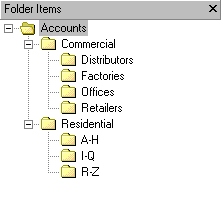
A new folder is automatically created when you type it in the Folder box on the Account Details screen. Separate sub-folders with a period. Using the above example, the folder for a retail store would be “Commercial.Retailers”. If the folder already exists, you can browse for it instead of typing it in by clicking the Browse button. Note that if you type a folder name and make a typographical error, a new folder will be created with the erroneous spelling. To correct the error, simply type or browse for the correct folder. The erroneous folder will be removed.