


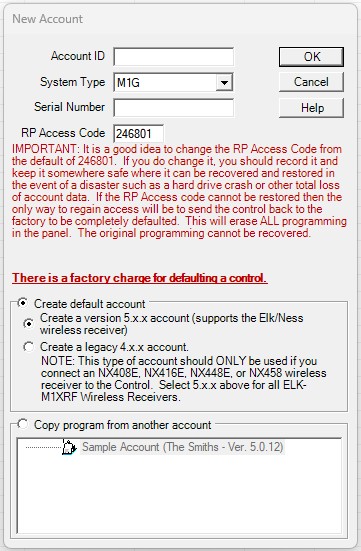
Allows you to create a new account in the database. When selected, a window opens for you to enter very basic information about the account – the Account ID, system type (model), serial number, and RP Access Code. Additional information (address, phone number, etc.) may be entered on the Account Details Screen after the account is created.
Account ID
A unique ID or account number to be assigned to the account. It may be up to twenty characters, consisting of letters, digits, and symbols. If you enter the ID of an existing account, ElkRP will tell you so and require you to select a unique ID.
System Type
The model of the system installed for this account (i.e. Elk M1). Select the model from the drop-down list.
Serial Number
The eight-digit number printed on a label attached to the main unit. The digits are hexadecimal digits, 0-9 and A-F. Enter the digits exactly as they are printed on the label.
RP Access Code
A code that is unique to your organization, programmed into all your systems to prevent take over. This code could be unique to each system.
Check Boxes
You can create a new account that is populated with factory default values or copy the values already programmed in another account or in an account template. Select one or the other check box. If you select the Create default account check box, specify whether you want to use factory default values for a version 4.x.x system or 5.x.x system. If you select the Copy program from another account check box, select the account or account template from the list below it.